The Extended Networking System (EN System) is a centrally managed port‑tunneling and remote administration platform for Windows. Built for IT network administrators — and proven in production for access control and video surveillance deployments connecting hundreds of cameras and panels across remote sites. Create encrypted TCP tunnels, run remote consoles as SYSTEM, move files, and manage every connector — all from a single management console.
Attempting to get Console permissions...
Access granted.
Microsoft Windows [Version 10.0.19045.6456]
(c) Microsoft Corporation. All rights reserved.
C:\>_
The EN System is built from three purpose-specific pieces that work together to give administrators granular, centrally managed access across every network they oversee.
The administrator's control plane. Build tunnels, launch remote consoles, transfer files, restart services, reboot machines, and push connector upgrades — all from one interface.
Runs on Windows Server and brokers every connection. Authenticates administrators via LDAP against your Active Directory domain or local Administrators / EN Admins group.
A lightweight Windows service that runs as SYSTEM on every managed endpoint, ready to accept tunnels, commands, file transfers, and remote maintenance calls from the console.
The same outbound-only tunnel architecture that gives network administrators precision access also solves connectivity for physical security systems that live on-prem and span sites.
Remote console, file transfer, and tunnel-level access to servers and workstations across every site you manage — without a flat, all-access VPN.
Reach on-prem access control panels and controllers at remote sites for configuration, troubleshooting, and maintenance — no inbound firewall ports required.
Connect a VMS to hundreds of cameras and NVRs across remote networks over encrypted tunnels — proven in production at scale.
Instead of dropping a user onto the whole business network, the EN System hands administrators finely tuned, tunnel-level access to exactly what's needed.
Open a listener on any local port and route it to any port on any device on a remote network where a connector is installed — for RDP, VNC, or any third-party TCP application.
Launch a live command console on any connector directly from the management console. Commands execute as SYSTEM on the remote PC.
Move files between any two connectors using side-by-side file management windows right inside the console — just drag and drop.
Restart connector services, reboot remote PCs, or restart the connector process itself — without leaving the console.
Push connector upgrades to individual endpoints or the whole fleet as new versions become available, all tracked from the console.
Command traffic between connectors and the server is encrypted with AES‑256 at minimum. Individual tunnels can be configured for full end-to-end encryption.
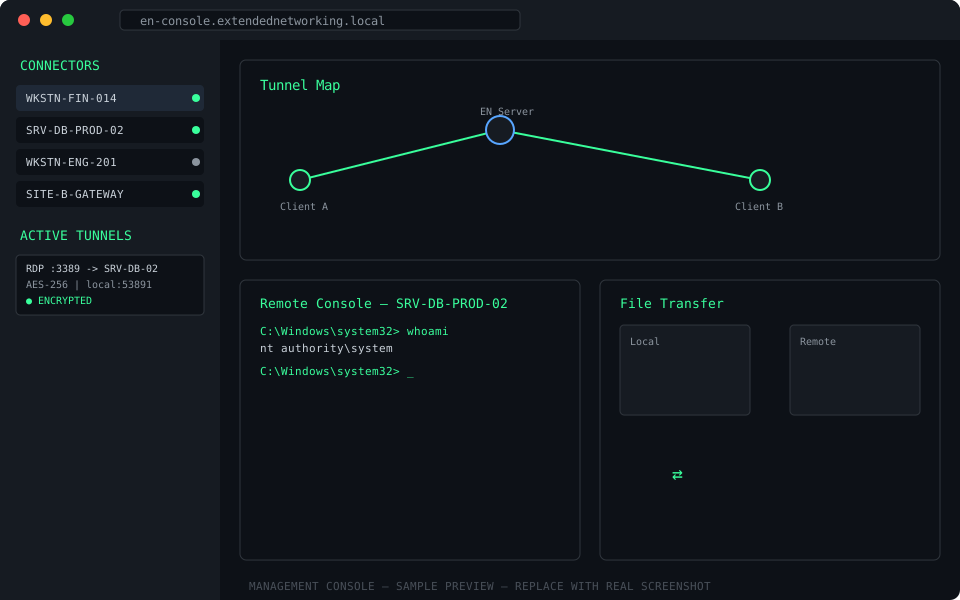
See connector status across every network you manage, build and monitor tunnels in real time, and jump into a remote console or file transfer session in a couple of clicks.
Sample preview shown. Replace with your own console screenshot.
The EN Server authenticates against your Windows domain via LDAP. Only users in the domain, local Administrators group, or EN Admins group can log in.
The server can be configured to accept connections only from an explicit allowlist of known connectors — unrecognized clients are rejected outright.
All command and control traffic between the server and connectors is encrypted with AES‑256 at minimum, by default.
Any tunnel can be configured for full encryption end-to-end, independent of the application traveling through it.
Install the EN Server on a Windows Server host and bind it to your Active Directory domain via LDAP.
Push the connector to any Windows endpoint. It installs as a SYSTEM service and registers with the server.
Authenticate as a domain, local admin, or EN Admins user and see every connector under management.
Create tunnels, open remote consoles, move files, and manage connectors — encrypted, from anywhere.
Get in touch to request a walkthrough of the management console and discuss deployment across your network.